How I built rockyshore.in from scratch, CMS included
A fast site, a private editor and an automatic publishing pipeline, built in two days on hosting I already paid for. No theme, no plugins, no developer.
 By
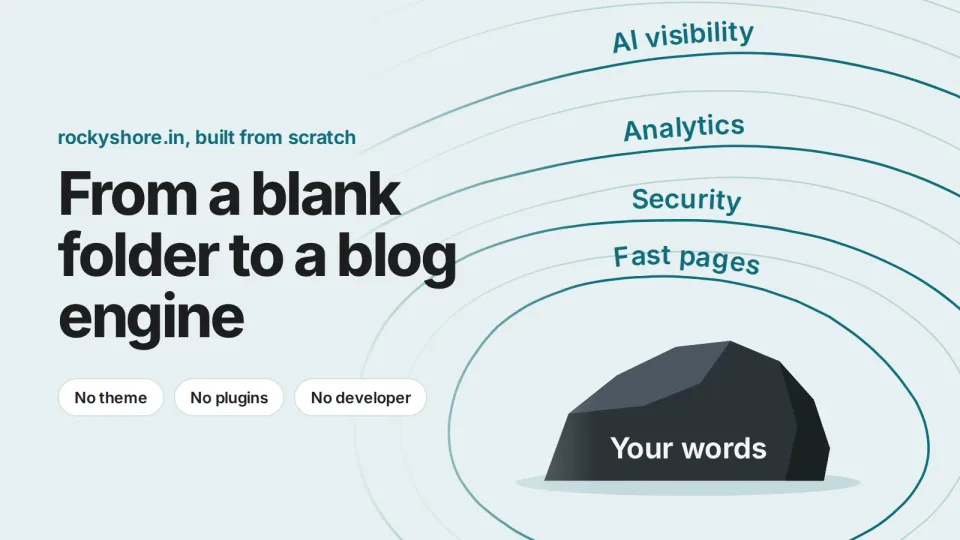
Two days ago, rockyshore.in was a JavaScript app that showed search engines almost nothing. Its title still said “Associate Product Manager”, and its content only appeared after scripts ran. Today it has a fast home page, proper security, analytics, files that AI tools can read, and its own publishing engine. I’m writing this note inside that engine.
Why I didn’t start with WordPress
I tell clients their sites should be fast, readable without JavaScript, and honest in their structured data. My own site should pass the same test.
WordPress would have given me an editor on day one. It would also have given me a theme to fight, plugins to keep updated, and pages heavier than they need to be. And as a product manager, building it myself was the point. Every decision below is one I’d make for a client’s product.
Step 1: A home page search engines can read
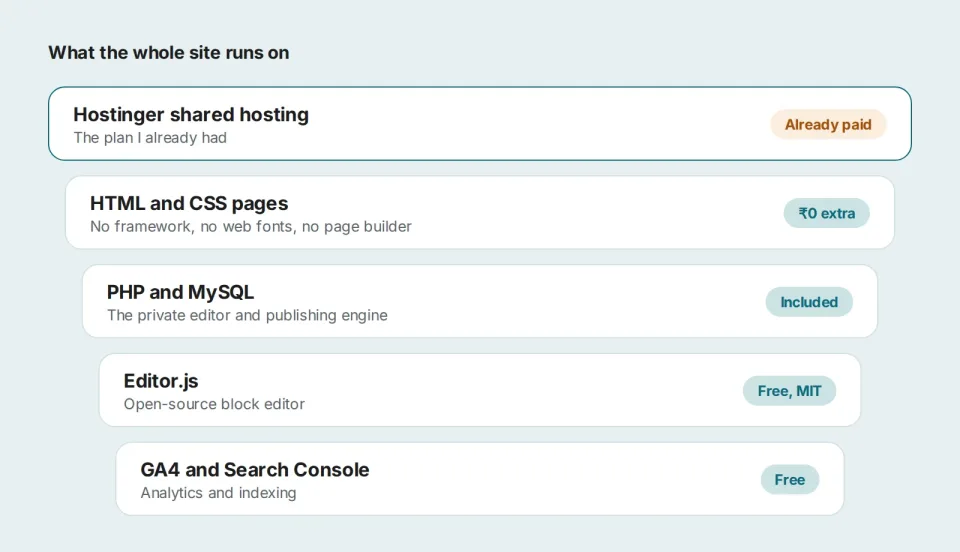
The pages are plain HTML and CSS: no framework, no page builder, no web fonts. The system font means Apple devices get SF Pro and Windows gets Segoe, with nothing extra to download.
Every page has one H1, a title, a meta description, a canonical tag and social preview tags. Structured data describes the website, me as the author, and the blog. Images are WebP in two sizes, with dark-mode versions, set dimensions so the layout never jumps, and lazy loading below the first screen.
Step 2: Lock it down before inviting traffic
The first real feature was a download: my 168-slide deck from the Search Central Live Bengaluru recap. A public file invites scripts, so before it went live:
- Private storage: the file sits in a folder the server never serves directly. A small script hands it out after checks.
- Limits: each visitor gets a few downloads per hour, and there’s a cap for the whole site.
- Blocking: bots are refused, and links from other sites go to the article instead of the file.
- Site-wide rules: security headers, blocked backup and hidden files, and form submissions only where a form exists.
In product terms, abuse cases belong in the spec, not in a ticket for later.
Step 3: Measure, and don’t trust the first error
Google Analytics runs from one small script file. Downloads and newsletter sign-ups are tracked as key events, and a privacy notice explains what’s collected.
Then Search Console said my sitemap “could not be read”. The file was fine: Google had simply tried to read it before the upload finished. A live test showed 200 OK and the right file type, and resubmitting fixed it. Lesson: check the live state before fixing a problem a dashboard reports.
Step 4: Make it readable for AI
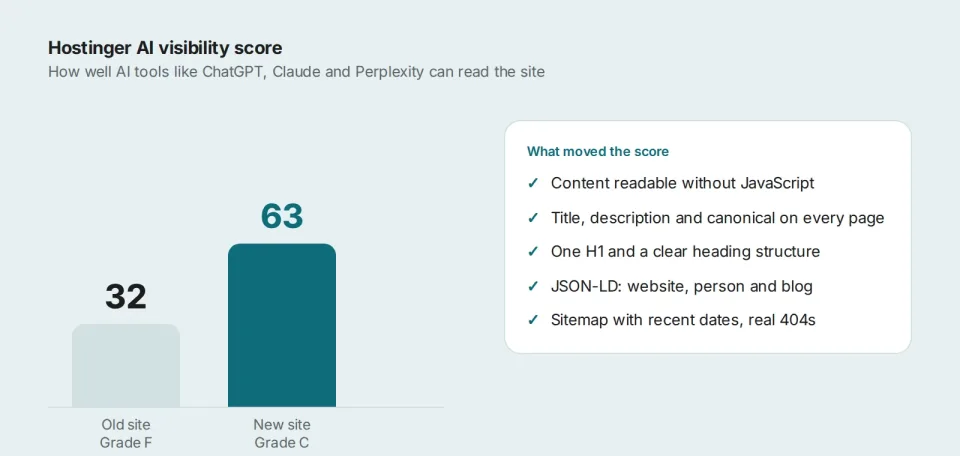
Hostinger has a checker that scores how well AI tools like ChatGPT, Claude and Perplexity can read a site. The old site scored 32. The new one scored 63 before I’d done anything specifically for AI, just from getting the basics right.
Then I added:
- an llms.txt file
- Markdown versions of every page, served when an AI tool asks for them
- a robots.txt line saying how content may be used
- structured data describing Rocky Shore as a publication
- proper About and Contact pages, with contact details AI tools can read
And it landed to 82 in the latest scan.
I deliberately skipped two checks. One asks for an MCP server card, and I don’t run an MCP server, so publishing one would be false. The other is WebMCP, an early browser proposal that no major assistant uses on websites yet. Not every point on a score is worth earning.
Step 5: Build the engine
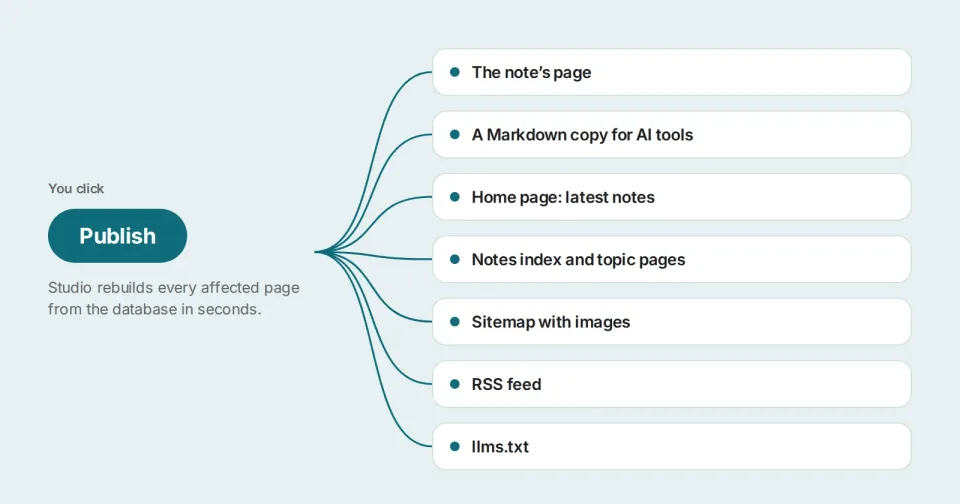
Publishing weekly shouldn’t mean editing code every week. So the site now has Studio: a private editor at /studio/ that saves drafts in MySQL and, when I click Publish, writes plain HTML pages in the site’s design. Visitors never touch the database, so the site stays as fast as before.
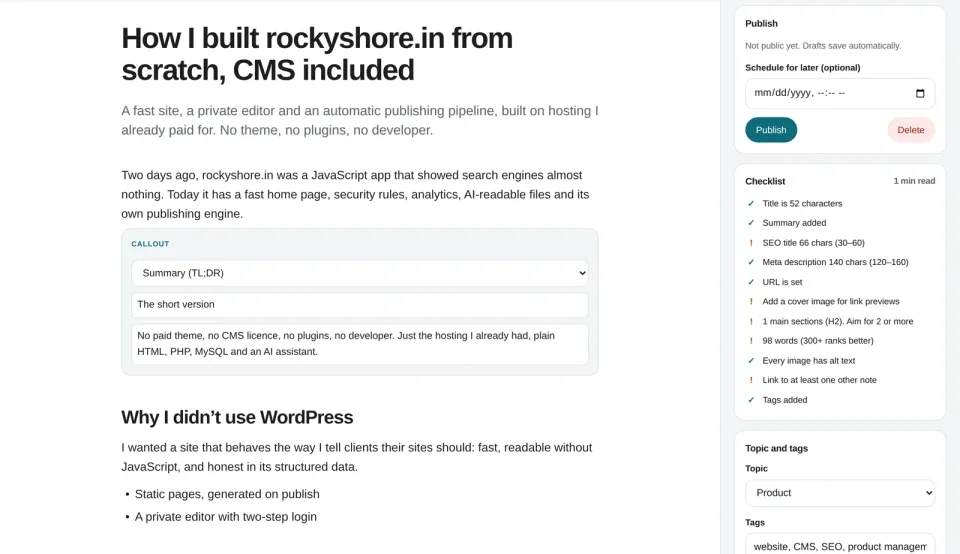
- A block editor: headings, lists, tables, images, galleries, callouts, two-column layouts, buttons, downloads, FAQs and video embeds.
- Image handling: images become WebP in four sizes automatically, and missing alt text is flagged.
- An SEO panel: title and description counters, a Google preview, a canonical setting, and an 11-point checklist.
- Publishing controls: scheduling, version history, related notes, and suggestions for internal links.
It has two-step login, attempt limits, security tokens on every action, and re-encoding for every uploaded image. Installing it on Hostinger took about fifteen minutes: create a database, add one config file, run the setup page, add a scheduled job.
What it actually cost
What I’d tell another product manager
- Write the spec in plain words before any code. “Every publish updates the sitemap” is a requirement. “Use a CMS” isn’t.
- Test on the same setup you’ll run on. Studio was tested on Apache, PHP and MySQL before it touched my hosting.
- Decide what not to build. Skipping two AI checks was a product call, not a gap.
- Let AI build, but keep the judgement. The AI wrote most of the code. What to block, what to skip and what the site should say were my decisions.
- Ship small, then harden. Home page, then security, then measurement, then the engine.
What’s next
The subscribe form saves emails today, but nothing sends them yet, so that’s the next feature. After that, I’ll move my event recap into Studio and keep to one note a week.
FAQ
Do you need to know how to code?
Not to use it. To build it, an AI assistant wrote most of the code, but you still need to know what to ask for and how to test it.
Is it really free?
The software is. You still pay for hosting and a domain.
Why not WordPress?
It’s a good choice for most sites. I wanted speed, full control, and the learning.
Can I do the same?
Yes, on any hosting plan with PHP 8 and MySQL.
